Most people use one blunt tool for everything they paste: the last thing they copied. When that stops working, they start keeping notes in a text file, a sticky note, an old email or a chat with themselves. It works, until you can't remember which one holds the thing you need.
Clipboard history, snippets and templates are three answers to three different problems. Knowing which is which makes you faster, and explains why QuickPaste puts them in one window instead of three. Terminology varies between products, so in this article we use these terms in the QuickPaste sense; another app may use the same words differently.
Clipboard history: what you just copied
Clipboard history is automatic. Every time you copy something, it's recorded. You don't decide in advance what matters, and most items are only useful for minutes or hours.
Best for: - Copying several things and pasting them in a different order - Recovering something you overwrote by copying again - Grabbing a link, number or paragraph from earlier today
Weakness: it's temporary and noisy. Useful items get buried, and built-in tools like Windows' Win + V keep only 25 entries. We cover the limits in Win+V vs a clipboard manager.
Snippets: reusable code
A snippet is a piece of code you save on purpose because you know you'll need it again, exactly as written. Save it once, click it any time to copy it back out, and stop digging through old files for that regex or config block you always forget.
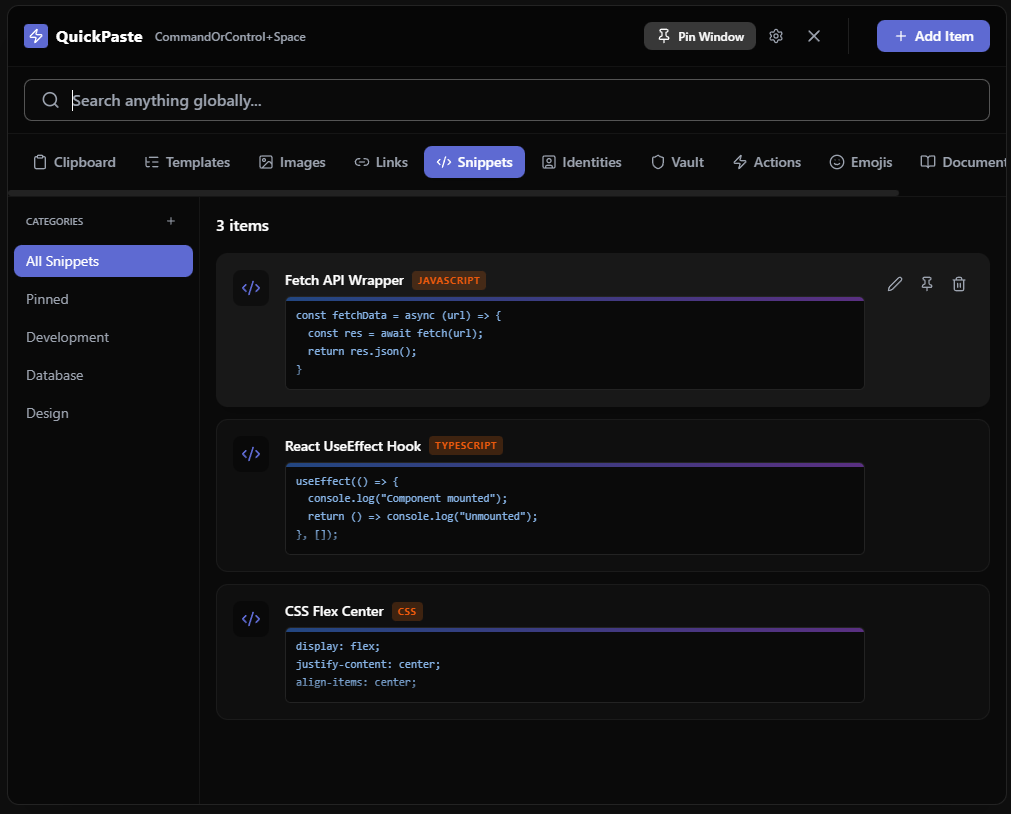
Examples:
- A terminal command: git rebase -i HEAD~3
- A reusable code block, like a fetch wrapper or a CSS flexbox centering rule
- A regex you can never remember
- A config block or SQL query you run repeatedly
Best for: anything code-shaped, exact and repeated.
Weakness: snippets don't adapt. If the text needs a different name or date each time, that's what templates are for.
In QuickPaste, snippets are labelled by language (for example JavaScript, TypeScript or CSS) and organized into categories such as Development, Database or Design, so a code block is easy to find at a glance.
Templates: longer messages with blanks
A template is a reusable message with placeholders. It carries the structure and wording, and you fill in the specifics.
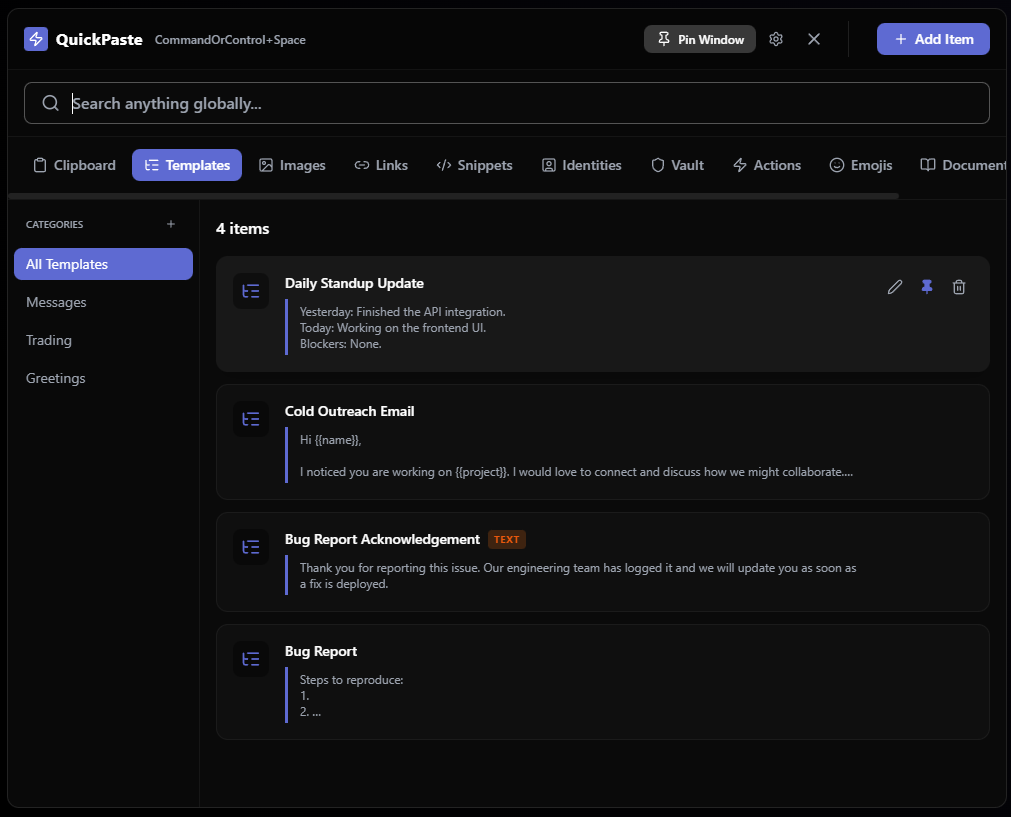
Examples: - A cold outreach email that opens with "Hi {{name}}, I noticed you are working on {{project}}" - A support reply acknowledging a bug report - A weekly sync update with sections for progress and blockers - A meeting-notes layout - A greeting or visitor-message script
Best for: anything you write repeatedly with small variations.
Weakness: they're overkill for a one-line command. Use a snippet for that.
QuickPaste groups templates into categories like Support, Outreach and Internal, which is handy when you have a lot of them.
The other things people paste all day
Beyond those three, a few other kinds of content deserve their own homes:
- Links. URLs you want back on your clipboard to paste into an email, a Slack message or a form. Think of Links as "give me the address" and Actions as "just take me there".
- Identities. Your phone number, work email, portfolio URL and addresses, the details you're constantly asked to type.
- Actions. For URLs or text you want to open, not copy. An Action launches the link in your browser (you choose which; Pro adds incognito mode) or types out a saved block of text, like an email signature, wherever your cursor is.
- Notes. A plain-text scratchpad for anything unformatted. In QuickPaste a note can be saved as a document.
- Secrets. Passwords, API keys and tokens belong in a separate vault, not in history. See our clipboard security guide.
Quick comparison
| Clipboard history | Snippets | Templates | |
|---|---|---|---|
| How it's created | Automatically | You save it | You write it once |
| Lifespan | Temporary | Permanent | Permanent |
| Typical length | Anything | Short | Medium to long |
| Changes each time? | No | No | Yes, via placeholders |
| Example | The link you just copied | docker-compose up -d --build |
A customer reply with {{name}} |
| Use it when | You need something from earlier | You paste the same thing repeatedly | You write similar messages repeatedly |
Why one place beats three tools
The problem with separate tools isn't features, it's remembering where things live. Was that command in your notes app, a chat with yourself, or a text file on the desktop? Every detour costs seconds and breaks your focus.
QuickPaste is built around one idea: open a single window with your global hotkey, type a few letters, and the search looks across clipboard history, snippets, templates, links, identities, actions and notes at once. You don't need to decide which module something is in, only what you're looking for.
A practical way to start
- Let clipboard history run for a few days and notice what you paste repeatedly.
- Promote the repeats. Move code to snippets, recurring messages to templates, and signatures or standard text blocks to Actions.
- Add categories once you have more than a handful.
- Pin the few you use daily.
- Move secrets to the vault rather than leaving them in history.
The Free plan includes 25 clipboard items and 3 each of templates, snippets and links, which is enough to try this workflow properly. There's no trial clock, and Pro is a one-time £9.99 if you outgrow the limits.
Working as a developer? Our clipboard manager guide for developers applies this to code, commands and API keys, and our ranking of the best clipboard managers for Windows shows how other tools compare.