If you copy passwords, recovery codes or API keys, these are the five things worth knowing:
- Prefer autofill. A password manager that fills the field directly never puts the secret on the clipboard.
- Clear it after use. Don't leave secrets sitting in the clipboard or in a history list.
- Keep secrets out of general history. Give them a separate place.
- Don't sync secrets. Treat synced clipboards as unsuitable for credentials.
- Mind your screen. Close clipboard panels before you share your screen.
The rest of this guide explains why, what the realistic risks are, and where QuickPaste's masked Vault fits in.
How the clipboard actually works
The clipboard is shared between applications so that copy-paste works across programs. Many applications running in your user session can access its contents through the operating system's clipboard APIs. That interoperability is useful, and it also has privacy consequences: the clipboard is not a private space.
Two things then extend its lifespan:
- Clipboard history tools, including Windows' own Win + V and third-party managers, store what you copy so you can paste it again later.
- Sync features can carry clipboard content to other devices through an online account.
So a password you copied once, "just for a second", may still be sitting in a history list, in a synced copy or in a backup.
The realistic risks
1. History persistence. Anything you copy can be remembered. If a password ends up in a clipboard history, it stays there until it ages out or you clear it.
2. Screen sharing and shoulder-surfing. Open your clipboard history during a video call or in a public place, and everything in it is visible, including that token from ten minutes ago.
3. Cloud sync. Synced clipboards move content through a provider's servers. That may be fine for a link and inappropriate for a credential. We compare approaches in local-first vs cloud clipboard managers.
4. Clipboard-hijacking malware. Some malware watches the clipboard and alters or steals what you copy. A well-known variant swaps a copied cryptocurrency address for the attacker's address just before you paste. This is why checking pasted values that involve money matters. SonicWall's Capture Labs, for example, analysed a clipboard hijacker dropped by STOP ransomware that scans the clipboard for cryptocurrency wallet addresses and swaps in addresses it carries, using the standard Windows calls to empty and rewrite the clipboard.
5. Broad access. Because many applications in your session can read the clipboard, a compromised or careless app can see what you copy.
6. Backups. If your clipboard tool exports backups, those files contain what you stored. They should be encrypted, as we explain in encrypted clipboard backups.
Habits that cut most of the risk
- Use autofill instead of copy-paste for passwords wherever you can. A password manager that fills the field directly never puts the secret on the clipboard at all.
- Clear the clipboard after copying a secret. Many password managers do this automatically after a short delay. Check whether yours does.
- Don't leave secrets in general history. Keep them in a separate, purpose-built place rather than mixed with everyday copies.
- Avoid syncing secrets. If you use a synced clipboard, treat it as unsuitable for credentials.
- Mind your screen. Close clipboard panels before sharing your screen, or use a tool that hides sensitive values by default.
- Keep your system updated and be cautious about what you install. Clipboard malware needs to get onto your PC first.
- Double-check pasted addresses and account numbers before confirming a payment.
- Use short-lived secrets when possible, such as tokens that expire, so an accidental exposure has a small window.
Windows clipboard history and sensitive data
Windows' built-in clipboard history is off until you switch it on. Once enabled, it holds up to 25 copied entries and clears unpinned ones on restart, as described in Microsoft's documentation. Turning it off clears the history, and the optional cross-device sync is tied to your Microsoft or work account.
If you handle credentials, either leave history off while you work with them, don't enable sync, or keep the secrets somewhere else entirely. Our Win+V comparison covers the built-in feature in more detail.
How QuickPaste's Vault helps
QuickPaste is a local-first clipboard manager for Windows, and its Vault is designed for the secrets you paste often:
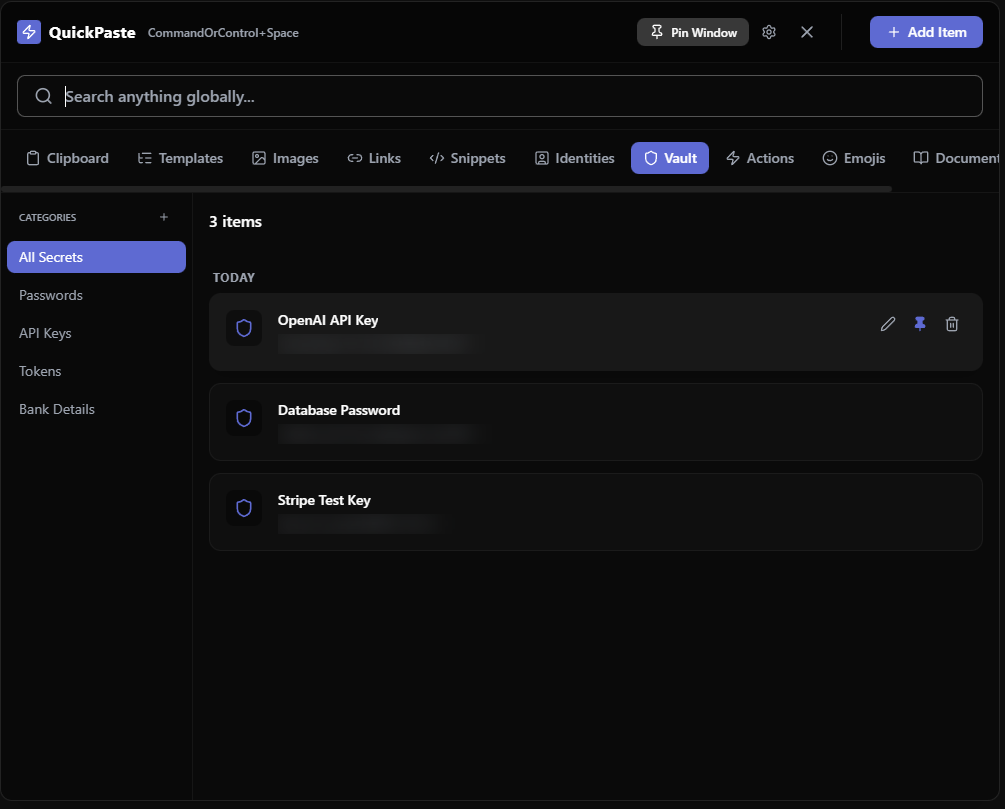
- Kept apart from your history. The Vault is kept separate from Clipboard entirely, so nothing you save there ever shows up in your Clipboard history.
- Masked by default. Vault entries show as •••••• and only reveal their real content when you click to show them, so nothing sensitive sits in plain view on your screen.
- Organized by type. Categories such as passwords, API keys, tokens and bank details keep things tidy and searchable.
- Local storage. Your data lives on your PC, with no account and no cloud sync by design.
- Encrypted backups. If you export a backup, it's protected with AES-256-GCM.
The Free plan includes 3 vault secrets, and Pro (a one-time £9.99) makes it unlimited.
An honest caveat: a clipboard-manager vault is a convenience for the handful of secrets you paste repeatedly, such as a staging API key or a test token. It isn't a substitute for a dedicated password manager for your whole digital life. Use each for what it's best at.
A simple routine
- Keep everyday passwords in a password manager and fill them with autofill.
- Put the few secrets you paste constantly in the Vault instead of leaving them in history.
- Leave cloud sync off for anything secret.
- Encrypt and separately store your backups.
- Clear history when you finish a sensitive task.
If you write code, these habits pair well with the workflow in our clipboard manager guide for developers, and if you want to know why data location matters so much, read how clipboard apps handle your data