Windows added clipboard history in Windows 10 and kept it in Windows 11. Press Win + V and you get a small panel of your recent copies. For a free, built-in feature it is genuinely useful, and if you have never tried it, our guide to turning on clipboard history in Windows takes about a minute.
But if you copy and paste for a living, you will hit its walls fast. This article lays out what Win+V does well, where it stops, and why a dedicated clipboard manager like QuickPaste is a step up, even on its free plan.
What Win+V does well
Credit where it is due. Microsoft's built-in clipboard history:
- Is free and already on your PC
- Lets you paste from a list of recent items instead of only the latest one
- Supports pinning, so a few favorite items survive restarts
- Can sync across devices if you turn on the option and sign in with the same Microsoft or work account
- Handles text, HTML and bitmap images
If your needs are "paste the thing I copied two minutes ago", Win+V may be all you need.
Where Win+V stops
According to Microsoft's own support page, clipboard history is limited to 25 copied entries, and items are limited to 4 MB each. Older items, unless pinned, are dropped to make room. The history is also cleared each time you restart your PC, except for pinned items. On a first-time setup, you also have to switch it on manually (Win+V, then Turn on).
Beyond those limits, it is simply a list. There is no search bar to find something you copied earlier, no way to sort items into categories, nowhere safe for sensitive text, no way to export or import your data, and no theme options of its own beyond following your system's light or dark setting.
Win+V vs QuickPaste, side by side
The comparison below is deliberately fair to Win+V: it puts the Free QuickPaste plan next to it, because that is what most people will actually be using.
| Windows Win+V | QuickPaste Free | QuickPaste Pro | |
|---|---|---|---|
| History size | 25 entries | 25 clipboard items plus 10 pins; older copies roll into History (view and delete; copy, edit and pin is Pro) | Unlimited |
| After a restart | Cleared (pinned items kept) | Kept, stored locally on your PC | Kept |
| Search bar | No | Yes, one global search | Yes |
| Categories and sections | No | Yes | Yes |
| Reusable text | No | 3 snippets and 3 templates | Unlimited |
| Sensitive items | Treated like any other copy | Vault, masked until you click to reveal (3 secrets) | Unlimited |
| Themes | Follows Windows light or dark only | 10 themes | Unlock Pro themes |
| Import and export | No | Yes, with encrypted backups | Yes |
| Cloud sync | Optional, via Microsoft account | None by design (local-first) | None by design |
| Cost | Free | Free forever | £9.99 one-time |
The pattern is clear: Win+V is a short-term memory. It is not a place to keep things. QuickPaste's Free plan is, and Pro only lifts the caps.
When Win+V is enough
Stick with Win+V if:
- You mostly paste something you copied moments ago
- You rarely re-use the same text, code or links
- You want cross-device sync through your Microsoft account
- You don't want to install anything
When a dedicated clipboard manager makes sense
A dedicated manager makes sense if:
- You keep re-typing or re-finding the same content
- You want to search everything you have copied or saved
- You handle passwords, tokens or other sensitive text and want them kept apart from general history
- You want your history to survive a restart
- You want templates with placeholders, code snippets tagged by language, or one-click links
How the Free plan handles your history
The Free plan is not a stripped-down demo. You get 25 active clipboard items plus 10 pinned items, and copies beyond that are not thrown away: they move into History. On the Free plan you can view History and delete from it; if you want an older copy back, free up space by deleting a few items you no longer need, or upgrade to Pro to copy, edit and pin straight from History. Nothing is wiped on restart, and reaching a limit never deletes what you have already saved.
On top of that you get a search bar, categories, 10 themes, a vault, and 3 items in each section (templates, snippets, links, actions, documents, identities), all under your control. Pro removes those limits for a single £9.99 payment, but you don't need it to leave Win+V behind.
The real difference: history vs organization
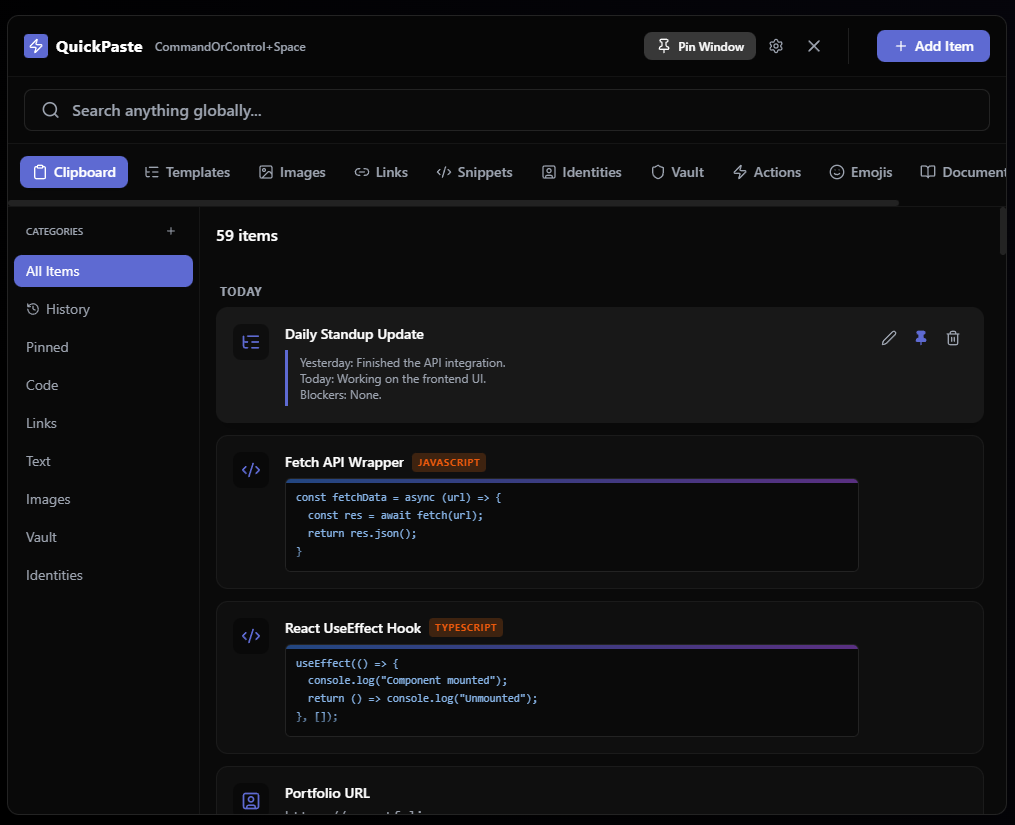
A clipboard manager earns its place when you realize that most of what you paste isn't new. It is the same email signature, the same command, the same link, the same phone number, the same boilerplate reply, over and over.
A 25-item rolling history is the wrong tool for that. Content you re-use wants a permanent, searchable home, and content you copied once wants to age out. QuickPaste separates the two. Your clipboard history captures what you copy, while snippets, templates, links, identities and notes hold what you use again and again. One search box finds all of it.
Privacy: a point in favor of local storage
Win+V's optional cloud sync is convenient, but it means your clipboard is being carried through your Microsoft account. If you would rather your clipboard never leave your machine, it's worth understanding the trade-offs, which we cover in local-first vs cloud clipboard managers. QuickPaste is local-first: your data stays on your PC, there is no account, and the internet is only used for the one-time Pro license activation. When you export a backup, it is encrypted with AES-256-GCM.
Switching from Win+V
QuickPaste is built to replace Win+V, not to run beside it. Install it, press your global hotkey, and everything you used Win+V for, plus search, categories, a vault and more, is in one window. The Free plan has no trial and no time limit, so you can make the switch properly and only consider Pro if you actually reach the limits.
Want to see how other tools stack up? Read our full ranking of the best clipboard managers for Windows.