The basics
Pop it up, click to copy, hover to manage.QuickPaste lives in the background and pops up with your global hotkey, which you can set to whatever you like in Settings.
Every section works the same basic way: click any item to copy it straight to your clipboard, ready to paste anywhere. Hover an item to Edit, Pin or Delete it.
Free users can use every section. You're never locked out of a feature, only limited on how much you can store in some of them. Nothing is ever deleted when you hit a limit; it's tucked out of view until you either free up space or upgrade.
- Set your own global hotkey in Settings
- Click any item to copy it
- Hover an item to Edit, Pin or Delete it
Every section is available. A few sections cap how much you can store, and nothing is deleted when you reach a cap.
Every limit removed for good with a one-time £9.99 payment. No subscription. Each key supports up to 3 device activations.
Clipboard
Your live clipboard history.This is the heart of the app. Anything you copy from anywhere on your PC, text or a screenshot, lands here automatically, newest at the top.
Anything you click to copy from any other section in QuickPaste also jumps to the top of Clipboard, so think of it as a running log of everything you've recently copied, no matter where it came from.
Pin an item here to protect it from scrolling away as you keep copying new things. History, inside Clipboard, is where older items go once they roll past the visible list. Nothing is lost, it's just moved there.
- Newest items sit at the top
- Pin the items you always want close
- Older items move to History, nothing is lost
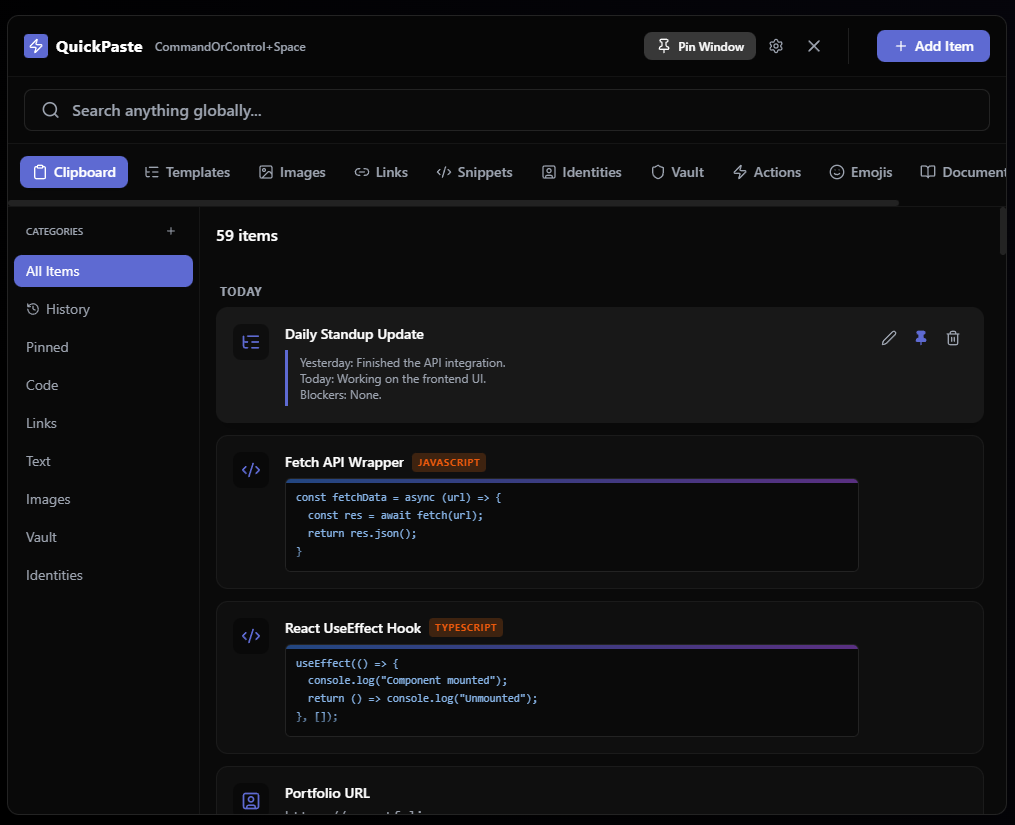
25 items in the visible list and up to 10 pins. You can view History and delete from it, but copying, editing or pinning from History requires Pro.
Unlimited clipboard history, with full access to History: copy, edit and pin straight from it.
Snippets
Reusable code, one click away.For reusable pieces of code. Save a snippet once, click it any time to copy it back out. No more digging through old files for that regex or config block you always forget.
- Ideal for regexes, commands and config blocks
- Click to copy it back out
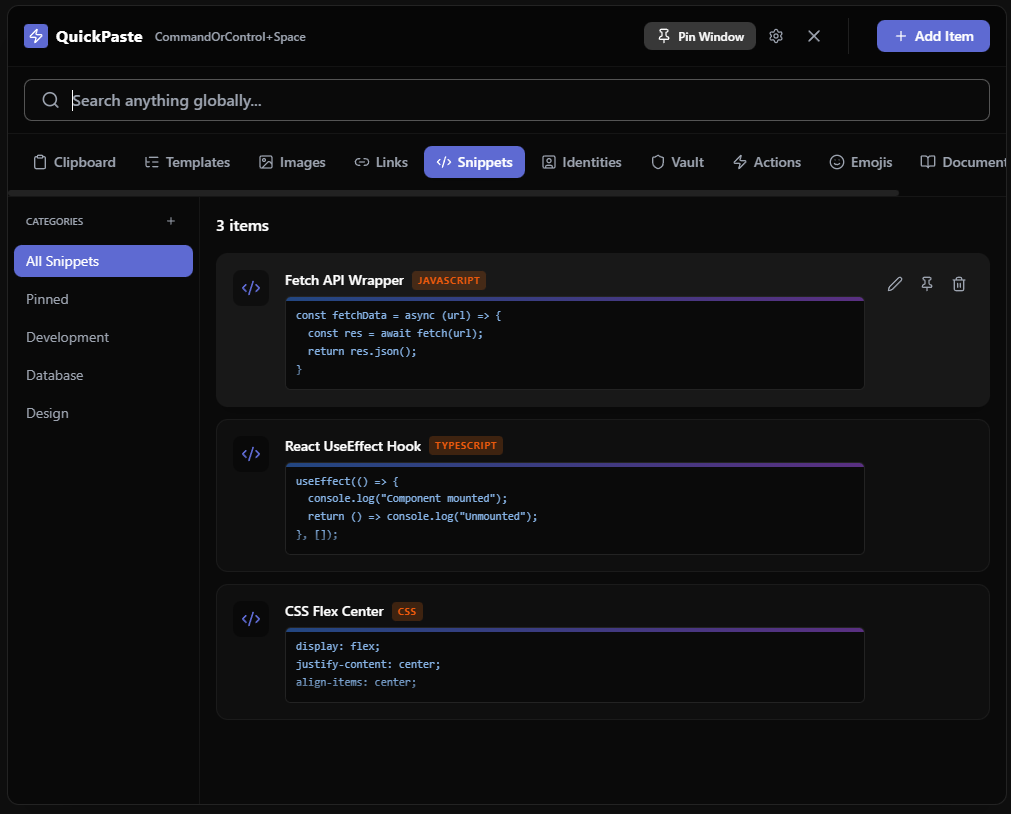
3 snippets.
Unlimited snippets.
Links
URLs you want to copy.For URLs you want to copy. Save a link here when you just want it back on your clipboard to paste somewhere: an email, a Slack message, a form.
- Think of Links as “give me the address”
3 links.
Unlimited links.
Actions
URLs and text you want to launch, not copy.For URLs (or blocks of text) you want to open, not copy. Clicking an Action launches it straight away: it opens the link in your browser, or types out a saved block of text wherever your cursor is.
Think of Links as “give me the address” and Actions as “just take me there.” You can also choose which browser an Action opens in.
- Open a link in your browser
- Type out a saved block of text at your cursor
- Choose which browser each Action uses
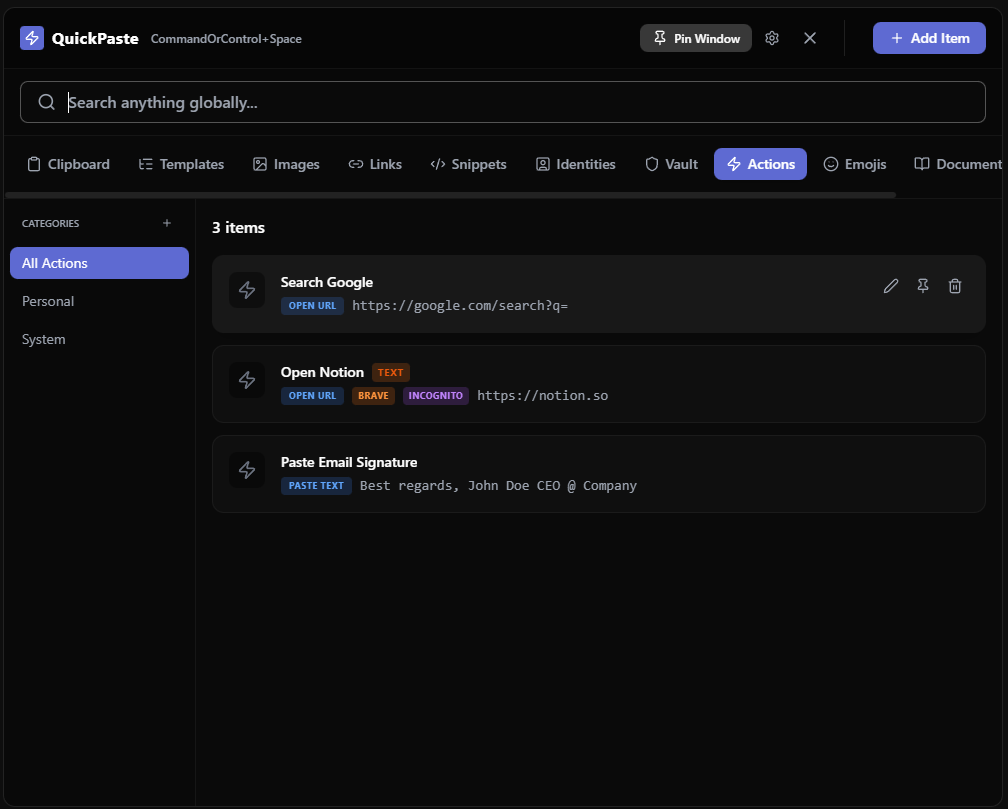
3 actions, and you can choose which browser each one opens in.
Unlimited actions, plus the option to launch them in incognito or private mode.
Templates
Reusable writing you fill in and send.For reusable chunks of writing you fill in and send often: a cold outreach email, a daily standup update, a bug report format. Save the skeleton once, copy it whenever you need it, then fill in the blanks.
- Save the skeleton once
- Copy it, then fill in the blanks
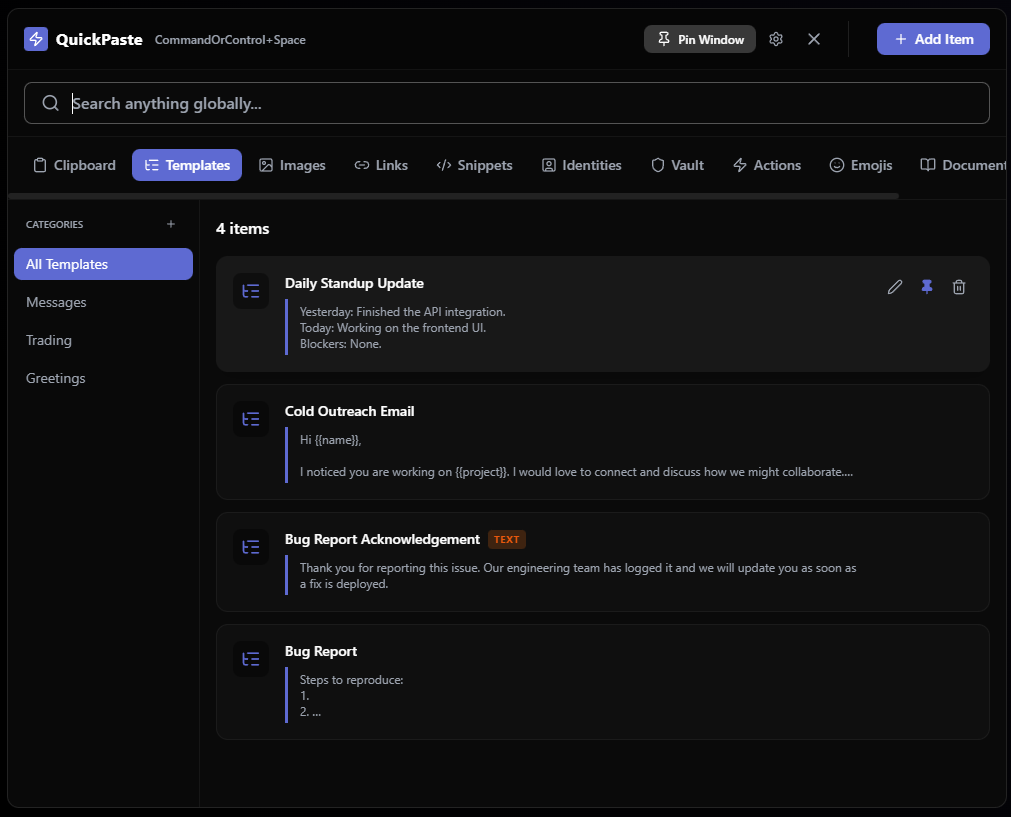
3 templates.
Unlimited templates.
Identities
Your own details, ready to paste.For your own personal details you paste often: your work email, phone number, portfolio link. Saves you retyping the same information into forms over and over.
- Work email, phone number, portfolio link
- Stop retyping the same details
3 identities.
Unlimited identities.
Vault
Sensitive things, masked by default.For anything sensitive: API keys, passwords, recovery codes. Vault entries are masked by default (••••••) and only reveal their real content when you click to show them, so nothing sensitive sits in plain view on your screen.
Vault is also kept separate from Clipboard entirely. Nothing you save here shows up in your Clipboard history.
- Masked by default
- Click to show an entry
- Never appears in Clipboard history
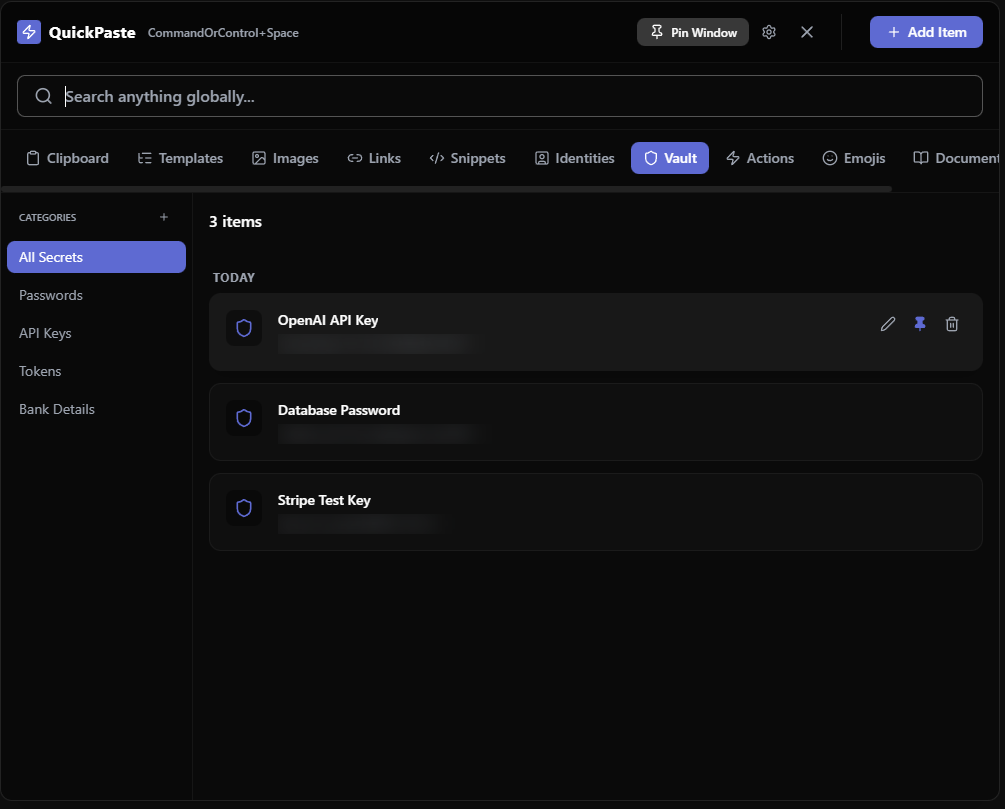
3 vault secrets.
Unlimited vault secrets.
Images
Your recent screenshots.Your recent screenshots, saved automatically. Click one to copy it straight back to your clipboard as an image, ready to paste.
- Screenshots are saved automatically
- Click to copy one back as an image
5 images.
Unlimited images.
Documents
Longer-form text worth keeping.For longer-form text you want to keep around: notes, project scope, meeting minutes, anything that's too long or structured to be a quick Template.
- Meeting minutes and project scope
- Too long for a Template? Put it here
3 documents.
Unlimited documents.
Notes
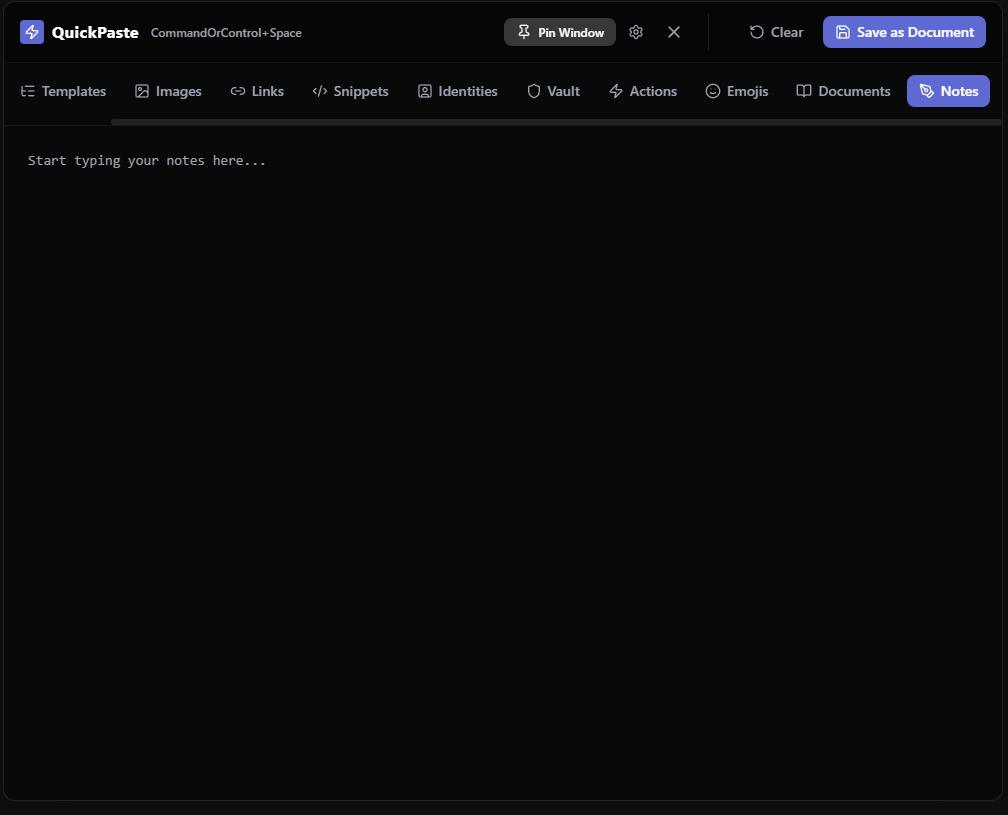
A scratchpad for right now.A single, always-available scratchpad for jotting something down right now. It's intentionally simple and fast. If something you've written there turns into something you want to keep long-term, save it and it moves into Documents.
- Always available, always simple
- Save a note and it moves into Documents
Included on the Free plan.
Included on Pro.
Emojis
A searchable emoji picker.A searchable emoji picker, unlimited on every plan. Click any emoji to copy it.
- Search by name
- Click to copy
Unlimited.
Unlimited.
Security
A Master PIN and encrypted backups.Master PIN: an extra lock for sensitive actions. It's required to export your data or to wipe your Clipboard history, so those can't happen by accident or by someone else picking up your PC.
Encrypted backups: the Master PIN authorizes the export, then QuickPaste asks for a separate backup password that is used to encrypt the backup file. Restoring it needs that backup password. QuickPaste enforces minimum lengths and recommends longer, unique secrets.
- Set a Master PIN
- Use a separate backup password for encrypted exports
- Wiping Clipboard history also needs the PIN
Included.
Included.
Free vs Pro
Free forever. Pro when you want the limits gone.QuickPaste is genuinely free to use. There's no trial countdown and no paywall on the app itself. Free comes with sensible limits per section (a handful of items in most sections, 25 in Clipboard, 5 screenshots) so it stays useful without ever costing you anything. Pro is a one-time £9.99 payment, with no subscription, that removes every limit for good.
| Section | Free | Pro (£9.99 once) |
|---|---|---|
| Clipboard | 25 items, up to 10 pins, History view and delete | Unlimited, full History access |
| Snippets | 3 | Unlimited |
| Links | 3 | Unlimited |
| Actions | 3, choose your browser | Unlimited, plus incognito launch |
| Templates | 3 | Unlimited |
| Identities | 3 | Unlimited |
| Vault secrets | 3 | Unlimited |
| Images | 5 | Unlimited |
| Documents | 3 | Unlimited |
| Notes | Included | Included |
| Emojis | Unlimited | Unlimited |
| Themes | 10 | Unlock Pro themes |
| Security | Master PIN and encrypted backups | Master PIN and encrypted backups |
| Price | £0, forever | £9.99 one-time |
Frequently asked questions
Do I need an account to use QuickPaste?
No. QuickPaste is local-first, so your data stays on your PC and no account is needed. The internet is only used for the one-time Pro license activation.
What happens when I reach a limit on the Free plan?
Nothing is deleted. Anything over a limit is tucked out of view until you either free up space or upgrade to Pro.
Where do I get a Pro license key?
License keys are issued through Gumroad. Pro is a one-time £9.99 payment with no subscription.
Does the Vault show up in my Clipboard history?
No. Vault is kept separate from Clipboard entirely, so nothing you save there appears in your Clipboard history.
Can I change the hotkey that opens QuickPaste?
Yes. You can set your own global hotkey in Settings.
Ready to try it? It's free, forever
No trial, no account, no subscription. Grab the free version now and upgrade to Pro for a one-time £9.99 only if you want the limits gone. More at tryquickpaste.com.