Most people use only the very last thing they copied, because Windows doesn't show anything else by default. Clipboard history changes that: copy several items, then pick which one to paste. It's built into Windows 10 (version 1809 and later) and Windows 11, but it's switched off until you turn it on.
This guide walks through setup, everyday use, syncing and troubleshooting, then covers what to do when the built-in feature stops being enough.
Step 1: Turn on clipboard history
There are two ways to enable it.
Option A: from the shortcut 1. Press Win + V. 2. When the panel appears, select Turn on.
Option B: from Settings 1. Open Start > Settings > System > Clipboard. 2. Switch Clipboard history to On.
From now on, what you copy is added to a list you can open any time with Win + V.
Step 2: Paste from history
- Copy a few different things as normal with Ctrl + C.
- Click where you want to paste.
- Press Win + V and select the item you want. It's pasted at your cursor.
Text, HTML and bitmap images are supported, up to 4 MB per item.
Step 3: Pin the items you use often
Unpinned items are removed as new ones arrive. To keep something:
- Open the panel with Win + V.
- Click the pin icon on the item.
Pinned items survive a restart and stay put until you unpin them. Pinning works as a mini snippet list, though it has none of the organization a real snippet library offers.
Step 4: Delete or clear items
- Delete one item: press Win + V, choose the three-dot menu next to the item and select Delete.
- Clear everything except pinned items: press Win + V and select Clear all, or go to Settings > System > Clipboard and select Clear under Clear clipboard data.
If you've copied something sensitive, clearing is worth doing. See our clipboard security guide.
Step 5: (Optional) Sync across devices
To share clipboard history between PCs:
- Go to Settings > System > Clipboard.
- Switch on Clipboard history across your devices.
- Sign in with the same Microsoft account (or work account) on each PC.
- Choose whether to sync automatically or manually. With manual syncing, you'll select a sync button on each item you want to send.
Note the trade-off: synced items travel through your online account. If your clipboard often contains passwords or private text, you might prefer to leave sync off. We compare the approaches in local-first vs cloud clipboard managers.
The limits to know about
According to Microsoft's documentation:
| Limit | Detail |
|---|---|
| Number of entries | 25 copied entries; older unpinned items are removed |
| Size per item | 4 MB |
| Supported formats | Text, HTML and bitmap |
| After a restart | Cleared, except pinned items |
| Turning history off | Clears all history, including pinned items |
| Sync | Optional; tied to a Microsoft or work account |
Windows 10 note: Microsoft ended support for Windows 10 on October 14, 2025, so if you're still on it, upgrading to Windows 11 is recommended.
Troubleshooting
Win+V does nothing. Make sure Windows is up to date. Then check that no other program (a keyboard utility, for instance) has claimed the shortcut.
The panel says history is off. Select Turn on or enable it under Settings > System > Clipboard.
My items vanished. History clears on restart, except for pinned items, and turning history off clears everything.
Sync isn't working. Confirm that sync is enabled on every PC, that you're signed in with the same account, and that the PCs are online.
An item won't save. Items over 4 MB aren't kept, and only text, HTML and bitmap formats are supported.
When 25 items isn't enough
Windows clipboard history is a good start. But if you find yourself pinning constantly to keep the same items around, re-typing the same text every day, or wishing you could search, organize or protect sensitive items, you've outgrown it.
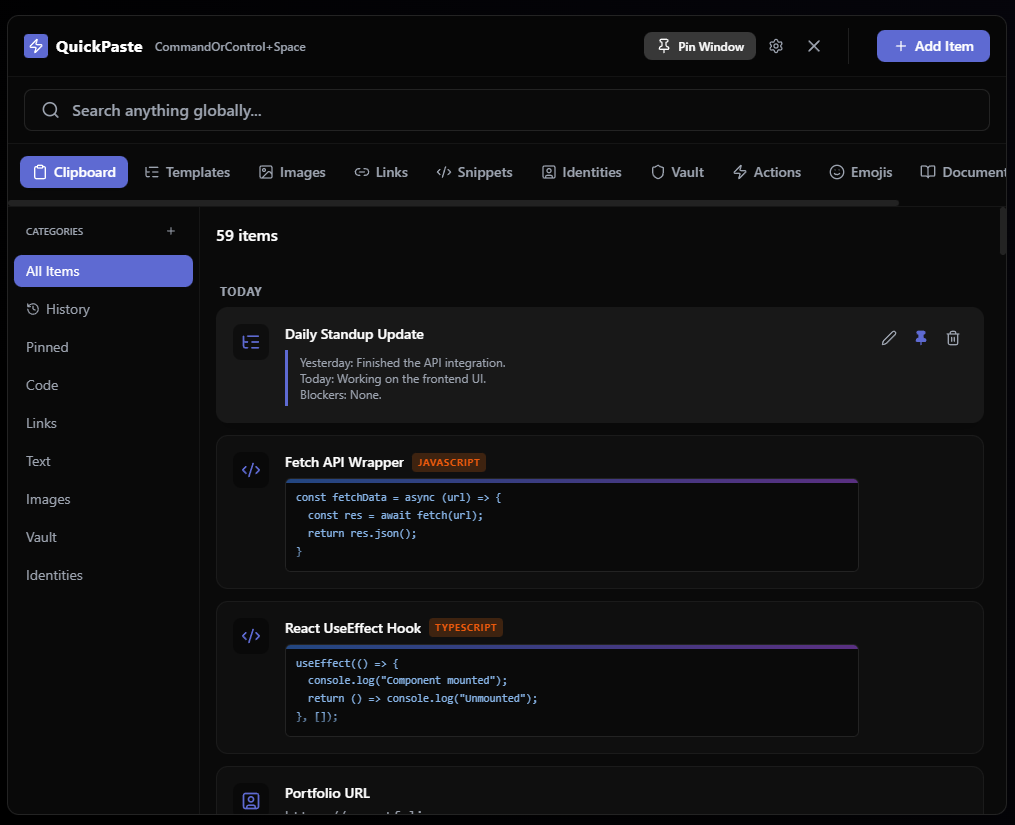
That's the gap QuickPaste is built to fill, as a replacement for Win+V rather than something to run beside it. It's a free, local-first clipboard manager and productivity hub for Windows, and even the Free plan goes well past what Windows offers: 25 clipboard items plus 10 pins, older copies moved into your History, a search bar, categories, 10 themes, a vault, snippets, templates and encrypted import and export. Your history survives a restart, and it opens with a global hotkey you set yourself. The Free plan is permanent with no trial, and Pro is a one-time £9.99 if you want the limits gone.
To see exactly where the built-in tool stops and a manager starts, read Win+V vs a clipboard manager, or compare all your options in our ranking of the best clipboard managers for Windows.