A developer's clipboard is busier than most. In one hour you might copy a stack trace, a curl command, a JSON payload, a branch name, an environment variable, a ticket ID and a staging URL. Windows' built-in history holds the last 25 things, and most of them are already gone by the time you need them.
This guide covers what a clipboard manager should do for development work on Windows, how to organize it, and how to keep secrets from leaking.
What developers actually need
Generic clipboard advice ("store more items!") misses what matters in a coding workflow:
- Speed. If it takes longer than a couple of seconds to summon and search, you won't use it. Keyboard-first is non-negotiable.
- Search across everything. You rarely remember where you saved something, only what it was.
- Code-aware storage. Snippets that keep formatting and are labelled by language.
- A safe home for secrets. API keys, tokens and passwords shouldn't live in a scrolling history list.
- Privacy. Your clipboard holds proprietary code, internal URLs and credentials. Where it's stored matters. See local-first vs cloud clipboard managers.
- Sensible pricing. A one-time tool you'll use for years shouldn't be another subscription.
A setup that works
QuickPaste is a local-first clipboard manager and productivity hub for Windows. Here's how its modules map to a developer's day.
Clipboard history: the scratch space
Let history do its job as short-term memory: log lines, error messages, values you're shuffling between the editor, the terminal and the browser. Search it instead of scrolling. Anything you catch yourself pasting a second time should be promoted to a snippet.
Snippets: commands and boilerplate
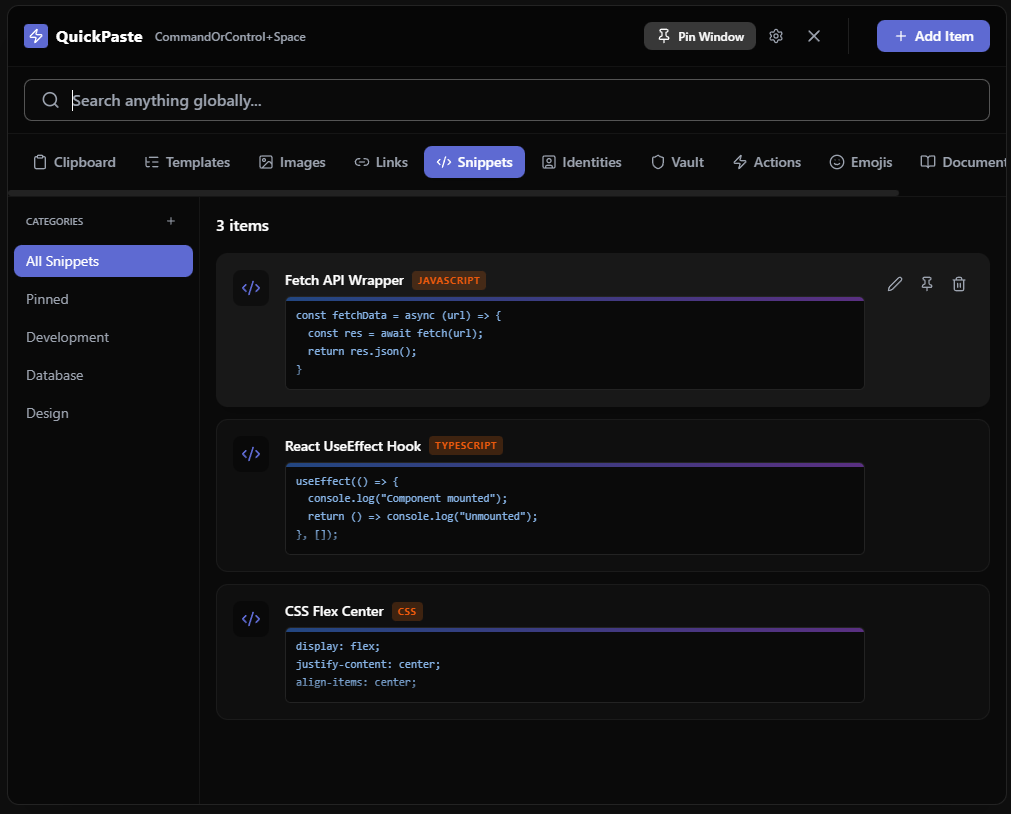
Snippets are short things you paste exactly. QuickPaste labels them by language and groups them into categories such as Development, Database and Design. Good candidates:
- Terminal commands you never remember (
git rebase -i HEAD~3,docker-compose up -d --build --remove-orphans) - A fetch or API wrapper you drop into new projects
- A React hook you always rewrite
- CSS patterns like a flexbox centering rule
- SQL you run repeatedly, and connection-string formats
Templates: recurring written messages
Not everything you paste is code. Templates hold longer text with placeholders such as {{name}} or {{project}}:
- Pull-request descriptions and code-review comments
- Bug-report and incident-update formats
- Standup notes with sections for progress and blockers
- Replies to common support or stakeholder questions
If you're unsure which module fits, our snippets vs templates vs clipboard history guide draws the line clearly.
Links: the things you open every day
Repos, dashboards, docs, CI pages and issue trackers can live in a Links module, organized by category such as Development, Education, Productivity and Design, so they're one search away instead of buried in browser bookmarks.
Vault: keys and tokens
This is where developers most often go wrong: API keys and tokens sitting in clipboard history. QuickPaste's Vault stores passwords, API keys, tokens and bank details separately from your history, with values masked until you click to reveal. That helps when you're screen-sharing a debugging session or pairing with someone.
Two honest notes. First, a vault in a clipboard manager suits the handful of secrets you paste repeatedly, like a staging key or a test token. It isn't a replacement for a proper secrets manager or your CI's secret store. Second, prefer short-lived credentials wherever your stack allows. More in our clipboard security guide.
Actions and identities
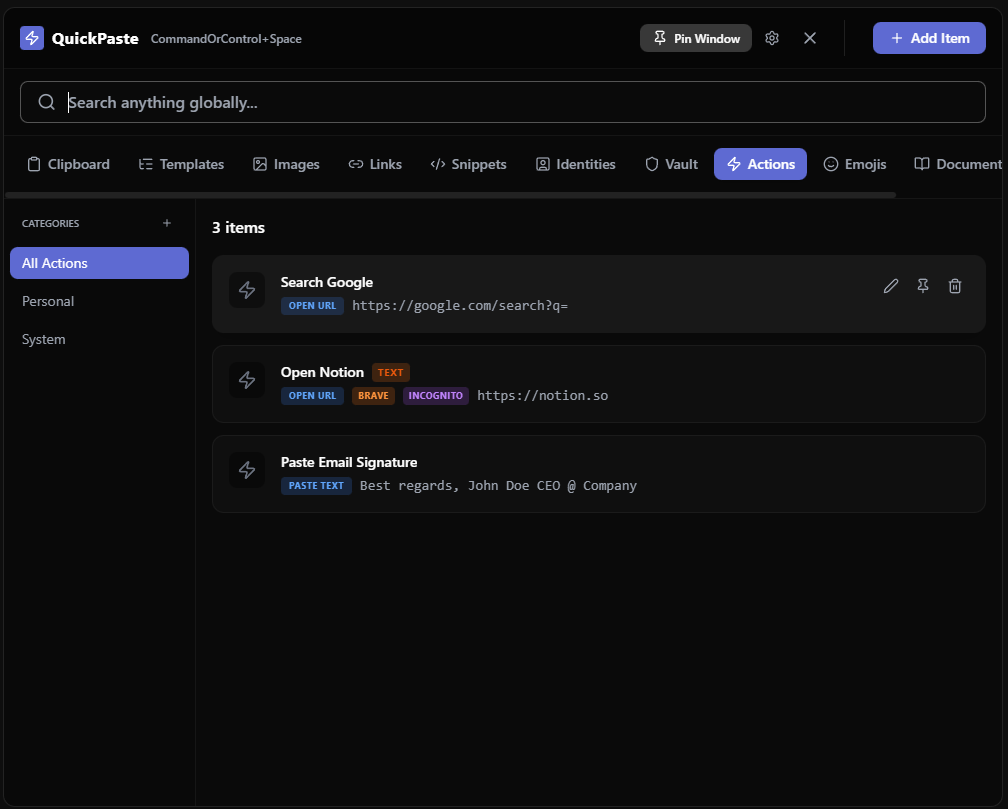
Actions can open a URL or paste saved text, useful for jumping to a dashboard or search endpoint. Identities store the personal and work details you're forever typing into forms: work email, portfolio URL, phone number and addresses.
Keyboard-first workflow
QuickPaste opens with a global hotkey that you set in Settings (our screenshots use Ctrl + Space). A typical loop looks like this:
Here is that loop for a saved Docker command:
- Hit the shortcut from anywhere, including inside your editor or terminal
- Type a few letters (the search is fuzzy and looks across all modules)
- Select the result and paste
- Carry on without leaving the keyboard
If you want it visible while you work, you can pin the window.
How it compares for developers
| QuickPaste | CopyQ | Ditto | Win+V | |
|---|---|---|---|---|
| Price | Free; Pro £9.99 one-time | Free, open source | Free, open source | Free, built in |
| Language-tagged snippets | Yes | Tabs, tags and notes | Not a focus | No |
| Templates with placeholders | Yes | Possible via custom commands | Not a focus | No |
| Dedicated secrets vault | Yes, masked until you click to reveal | Can ignore copies from chosen windows or text | Not a focus | No |
| Scripting / CLI | No | Extensive (command line and scripting) | Not a focus | No |
| Data location | Your PC | Your PC | Your PC (optional network sync) | Local, optional Microsoft sync |
| Cross-platform | Windows only | Windows, Linux, macOS | Windows | Windows |
Where the alternatives win: if you want command-line control and scripting, CopyQ is in a class of its own, and it also runs on Linux and macOS. If you want a lightweight, fully open-source history tool, Ditto is excellent. QuickPaste doesn't offer scripting or cross-platform support. It focuses on being organized, private and quick to use out of the box. Our full ranking of Windows clipboard managers covers the rest.
Privacy matters more for code
Your clipboard can carry proprietary source, internal hostnames and customer data. A tool that stores everything locally and needs no account keeps that off someone else's servers. QuickPaste stores data on your PC, has no account and no cloud sync, and its exported backups are encrypted with AES-256-GCM using a key derived from a separate backup password (see how that works).
Try it without a countdown
The Free plan is permanent, with no trial: 25 clipboard items, 3 snippets, 3 templates, 3 links, 3 actions, 3 vault secrets and more. That's enough to feel the workflow for real. If you outgrow it, Pro is a one-time £9.99 with no subscription. Download QuickPaste and see whether it earns a place on your shortcut.